Bookivo documentation
Bookivo lets you run your own online booking business. Salons, clinics, studios, trainers and any business that works by appointment sign up on your website, pay you a monthly plan, and get a booking page, a team calendar, online deposits and automatic reminders.
What's in the download
| Folder | What it is |
|---|---|
bookivo/ | The application. This is what you upload to your server. It already contains everything it needs (vendor/ and the built interface), so you don't need Composer or Node.js. |
documentation/ | This guide. Open index.html in any browser; it works offline. |
Requirements
Any normal cPanel or Plesk hosting works, as does a VPS. You don't need SSH, Composer, Node.js, Redis or a separate queue worker.
| Item | Needed |
|---|---|
| PHP | 8.3 or newer (8.3, 8.4 and 8.5 are supported). The installer warns you when your PHP is not the latest patch release of its branch, but it never stops you: update PHP when your host offers it. |
| PHP extensions | bcmath, ctype, curl, dom, fileinfo, gd, intl, json, mbstring, openssl, pdo, pdo_mysql, tokenizer, xml, zip, and sodium (used to check update packages). Most hosts have all of them on; the installer lists any that are missing. |
| Database | MySQL 8.0+ or MariaDB 10.6+, one empty database with a user that has all privileges on it. |
| Web server | Apache (with mod_rewrite), LiteSpeed or Nginx. |
| HTTPS | Strongly recommended, and required for card payments and phone notifications. Free AutoSSL / Let's Encrypt is fine. |
| Cron | One cron job that runs every minute (see Cron job). |
| Memory / upload | memory_limit 256M or more; upload_max_filesize 16M or more for update packages and photos. |
Installation
It takes about ten minutes. The steps below use cPanel, and other panels use the same steps under different names.
1. Create the database
- cPanel → MySQL® Databases. Create a database, for example
youruser_bookivo. - Create a user with a strong password.
- Add the user to the database with ALL PRIVILEGES. Keep the three names and the password for step 4.
2. Upload the files
- Upload the contents of the
bookivo/folder to your account, for example to/home/youruser/bookivo. The easiest way: upload the zip with File Manager, then Extract. - Make sure the hidden files came along. You should see
.htaccessfiles in the main folder and inpublic/(File Manager → Settings → Show hidden files).
3. Point the domain at the public folder
The domain must open the public folder, not the main folder. In cPanel: Domains → your domain → Manage → Document Root → bookivo/public.
public_html. Then upload everything into public_html. The .htaccess in the main folder sends visitors into public/ and blocks everything else, like .env, storage and backups. Afterwards, Admin → System → Server check confirms nothing private can be downloaded.4. Run the installer
Open your domain in a browser. The installer starts by itself and has three steps:
- Requirements: PHP version, extensions and writable folders. Anything red tells you what to fix.
- Database: host (usually
localhostor127.0.0.1), port3306, database name, user and password. Creating the tables takes up to two minutes on slow hosting, so keep the page open. - Admin:
- Your platform name and address.
- The main country of your customers. New businesses start with its currency, time zone, phone code and tax rate, and each one can change them later.
- Your admin account.
When it finishes you land on the login page. The installer locks itself after the first successful installation.
Installing on a VPS (Nginx)
Point the server block's root at /var/www/bookivo/public and send all requests to index.php:
server {
    listen 80;
    server_name example.com *.example.com;
    root /var/www/bookivo/public;
    index index.php;
    client_max_body_size 32m;

    location / { try_files $uri $uri/ /index.php?$query_string; }
    location ~ \.php$ {
        include fastcgi_params;
        fastcgi_param SCRIPT_FILENAME $realpath_root$fastcgi_script_name;
        fastcgi_pass unix:/run/php/php8.4-fpm.sock;
    }
    location ~ /\.(?!well-known) { deny all; }
}
Give the web server user write access to storage/, bootstrap/cache/ and .env:
chown -R www-data:www-data storage bootstrap/cache .env
chmod -R ug+rwX storage bootstrap/cache
Cron job (required)
Bookivo needs one cron job, every minute. It sends e-mails and booking reminders, issues renewal invoices, pauses unpaid businesses and makes the nightly backup. No separate queue worker is needed: the same cron job runs background jobs too.
cPanel → Cron Jobs → Once Per Minute (* * * * *), command:
cd /home/youruser/bookivo && php artisan schedule:run >> /dev/null 2>&1Use your real path. Admin → System → Server check shows the exact line for your server and tells you when the cron last ran.
php is the wrong versionSome hosts have several PHP versions. Use the full path of PHP 8.3 or newer, for example /opt/cpanel/ea-php84/root/usr/bin/php or /usr/local/bin/ea-php84. Your host's support can tell you the right one.| Task | When |
|---|---|
| Background jobs (e-mails, notifications) | Every minute |
| Booking reminders to clients | Every 5 minutes |
| WhatsApp reminders (businesses with a reminder template) | Every 15 minutes |
| Google Calendar: busy times, retries, push channels | Every 5 minutes |
| Subscriptions: renewal invoices, overdue and paused businesses | Daily 02:15 |
| Backup of the database and uploads | Daily 03:30 |
First steps as platform owner
After logging in you see Get your platform ready to sell, a checklist that ticks itself off as you go:
- Check your plans and prices: three plans are ready (Solo, Team, Business) in US dollars. Set your own prices and currency in Plans.
- Set up e-mail: so businesses receive sign-up, password and invoice e-mails, and their clients receive confirmations and reminders (E-mail).
- Choose how businesses pay you: Stripe, PayPal or bank transfer (Payments).
- Upload your logo: Website → logo. It replaces the Bookivo mark everywhere, including the login pages and e-mails.
- Write your home page: headline, features, FAQ, terms and privacy pages, in every language you offer.
- Get your first business: share your sign-up page (
/register), or add one yourself under Businesses.
Admin → Email. Enter your SMTP details, for example from the e-mail account you created in cPanel, or from Mailgun, Postmark, Amazon SES or Brevo. Then use Send a test e-mail on the same page.
| Field | Typical value |
|---|---|
| Host | mail.yourdomain.com |
| Port / encryption | 465 with SSL, or 587 with TLS |
| Username / password | The full e-mail address and its password |
| From address | An address on your own domain, such as no-reply@yourdomain.com. That helps keep mail out of spam. |
The password is stored encrypted. Until e-mail works, new accounts don't need to confirm their e-mail address, so nobody gets locked out.
SMS
Businesses can text their clients when a booking is made, before the visit, when it moves to a new time and when it is canceled. Each text is short, in the business's language, and links to the client's booking page. Texts are sent by the background jobs of the cron job; reminders go out at the reminder time the business set under Settings → Booking rules.
There are two kinds of SMS account:
- The platform account, which you pay for: Admin → SMS. A business uses it only when its plan includes SMS on the platform account, and at most Platform SMS per month messages a month (leave it empty for no limit). Set both in Admin → Plans.
- The business's own account: under Settings → Text messages any business can enter its own provider details and pay the provider directly. No plan limit applies.
On the same page the business switches each message on or off, sends a test, and sees the last 30 messages with the provider's answer. A client without a phone number is not texted. A client who already gets the same news on WhatsApp (see WhatsApp agent) is not texted either, unless the business ticks Also text clients who get the same message on WhatsApp. Numbers typed without a country code are read as numbers of the business's country, so set the country in Settings.
Twilio
- In the Twilio Console, copy the Account SID and Auth Token from the account dashboard.
- Buy a number that can send SMS to your clients' countries, or create a Messaging Service with your numbers in it.
- In Bookivo choose Twilio, paste the Account SID and Auth token, and enter either the From number (for example
+15551234567, or an approved alphanumeric sender ID) or the Messaging Service SID (starts withMG). When both are filled in, the Messaging Service is used. - Save, then use Send a test message. A trial Twilio account only texts numbers you verified in the Twilio Console.
Vonage (API key, API secret, From) and Plivo (Auth ID, Auth token, From number or Powerpack UUID) are set up the same way.
Any other SMS company (HTTP API)
Choose Other provider (HTTP API) and copy the details from your provider's API documentation. In the URL and the body, these placeholders are replaced for each message:
| Placeholder | Replaced with |
|---|---|
{to} | The client's number with +, for example +201001234567 |
{to_digits} | The same number without +: 201001234567 |
{message} | The text of the message |
Each value is escaped for where it stands, so do not encode it yourself. Examples:
| Provider expects | Settings |
|---|---|
| A GET link | Method GET, URL https://sms.example.com/send?user=me&key=KEY&to={to_digits}&text={message} |
| A form post | Method POST, format form, body to={to_digits}&text={message}&sender=Salon |
| JSON with a token | Method POST, format json, header Authorization: Bearer YOUR-KEY, body {"to": "{to}", "text": "{message}"} |
Any answer with HTTP status 200–299 counts as sent. If your provider answers 200 even when it refuses a message, fill in Success text with a word that only appears in a good answer (for example OK or "status":"success"). Message id path (for example data.id) picks the provider's message id out of a JSON answer, so it shows in the log. Headers are stored encrypted. A business's own HTTP provider must be on the public internet; the platform account may also point at your own network.
All credentials are stored encrypted. The public demo never sends text messages.
Payments
There are two separate kinds of money:
- Businesses paying you for their plan: Admin → Billing → Settings.
- Clients paying a business a booking deposit: each business connects its own account under Settings → Online payments, so their money goes straight to them.
Stripe
- Stripe Dashboard → Developers → API keys: copy the Secret key (
sk_live_…, orsk_test_…to try it out). - Developers → Webhooks → Add endpoint: paste the webhook URL shown on the payment card in Bookivo. Select the events
checkout.session.completed,checkout.session.async_payment_succeeded,checkout.session.async_payment_failedandcheckout.session.expired. - Copy the endpoint's Signing secret (
whsec_…) into Bookivo, turn Stripe on, and save. The keys are tested when you save, so a wrong key is caught right away.
PayPal
- developer.paypal.com → Apps & Credentials → create an app. Copy the Client ID and Secret.
- In the app, add a webhook with the URL shown in Bookivo and the events
CHECKOUT.ORDER.APPROVED,PAYMENT.CAPTURE.COMPLETED,PAYMENT.CAPTURE.DENIEDandPAYMENT.CAPTURE.DECLINED. Copy the Webhook ID. - Choose sandbox to test or live for real money.
Bank transfer
Turn it on and write the transfer instructions (bank, account, reference). Businesses upload proof of payment; you see it under Billing → Waiting for review and approve it with one click.
Plans & billing
Admin → Plans. Each plan has:
- A monthly price, a yearly price and a currency.
- Free trial days.
- Limits: branches, team members, services and bookings per month (empty means unlimited).
- Features: online booking page, online deposits, email reminders.
Limits are enforced everywhere. A business that reaches its monthly booking limit sees a clear message and an upgrade link, and its clients are asked to contact the business directly.
The billing cycle
- A new business starts on a free trial of the plan it chose.
- Before the period ends, an invoice is created and e-mailed.
- Unpaid after the due date, the subscription becomes past due. The business keeps working but sees a warning.
- Still unpaid after the grace period, the business is paused until it pays. Its data is never deleted.
Admin → Billing → Settings sets:
- The days to pay an invoice.
- When the renewal notice goes out.
- The grace days (7 by default).
- Whether unpaid businesses are paused at all.
Business addresses
Every business gets a booking page address that always works, on any hosting:
https://yourdomain.com/r/business-name/bookSubdomains (optional)
To give each business business-name.yourdomain.com:
- Add a wildcard DNS record:
*→A→ your server's IP. - Add the wildcard as a subdomain in cPanel (
*.yourdomain.com, same document root), and get a wildcard SSL certificate for it. AutoSSL covers wildcards on many hosts; otherwise use Let's Encrypt with DNS validation. - In
.envsetBOOKIVO_SUBDOMAINS=true.
A business's own domain
A business can connect its own domain under Settings → Web address, for example book.theirsalon.com. Bookivo shows two DNS records for them to add:
- A TXT record that proves the domain is theirs.
- A CNAME record that points it at your platform.
On shared hosting, also add that domain to your account as an alias (cPanel → Domains, same document root), so your server answers for it and issues its SSL certificate. On a VPS, a catch-all server block does the same.
Running a business
Business owners see their own Get your booking page ready checklist: services, working hours, logo and colour, sharing the booking link, first booking.
Services
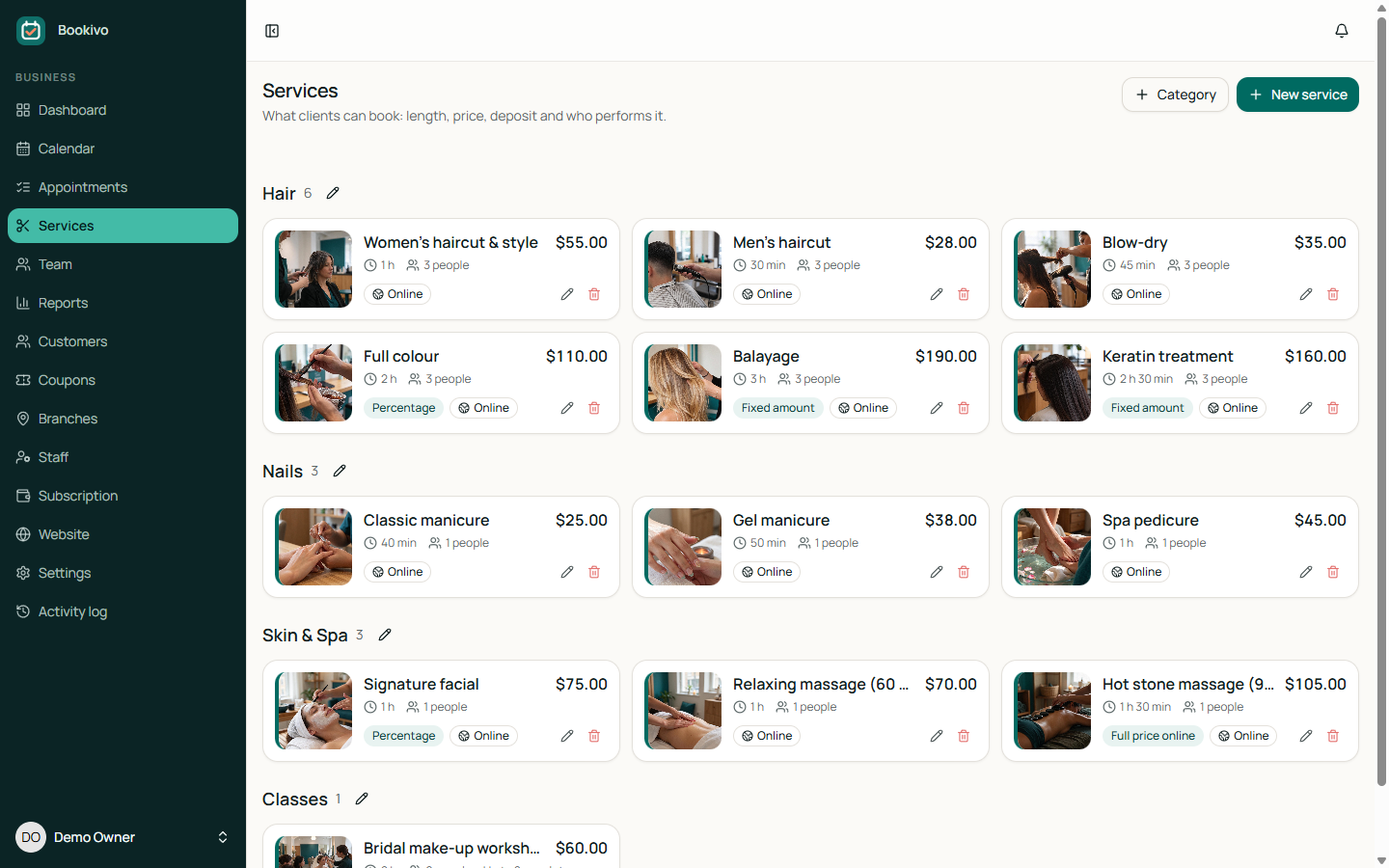
- Length, prep and clean-up: the time blocked before and after keeps the next client from being booked into the clean-up.
- Price and tax: the country's tax rate is added automatically, and the business chooses whether prices include tax.
- Deposit: none, a fixed amount, a percentage or the full price, paid online when booking. The booking is confirmed once the deposit is paid.
- Group classes: set seats per slot above 1 and several clients can book the same time until it is full.
- Who performs it: each team member can have their own price and length for the same service.
Team, working hours and time off
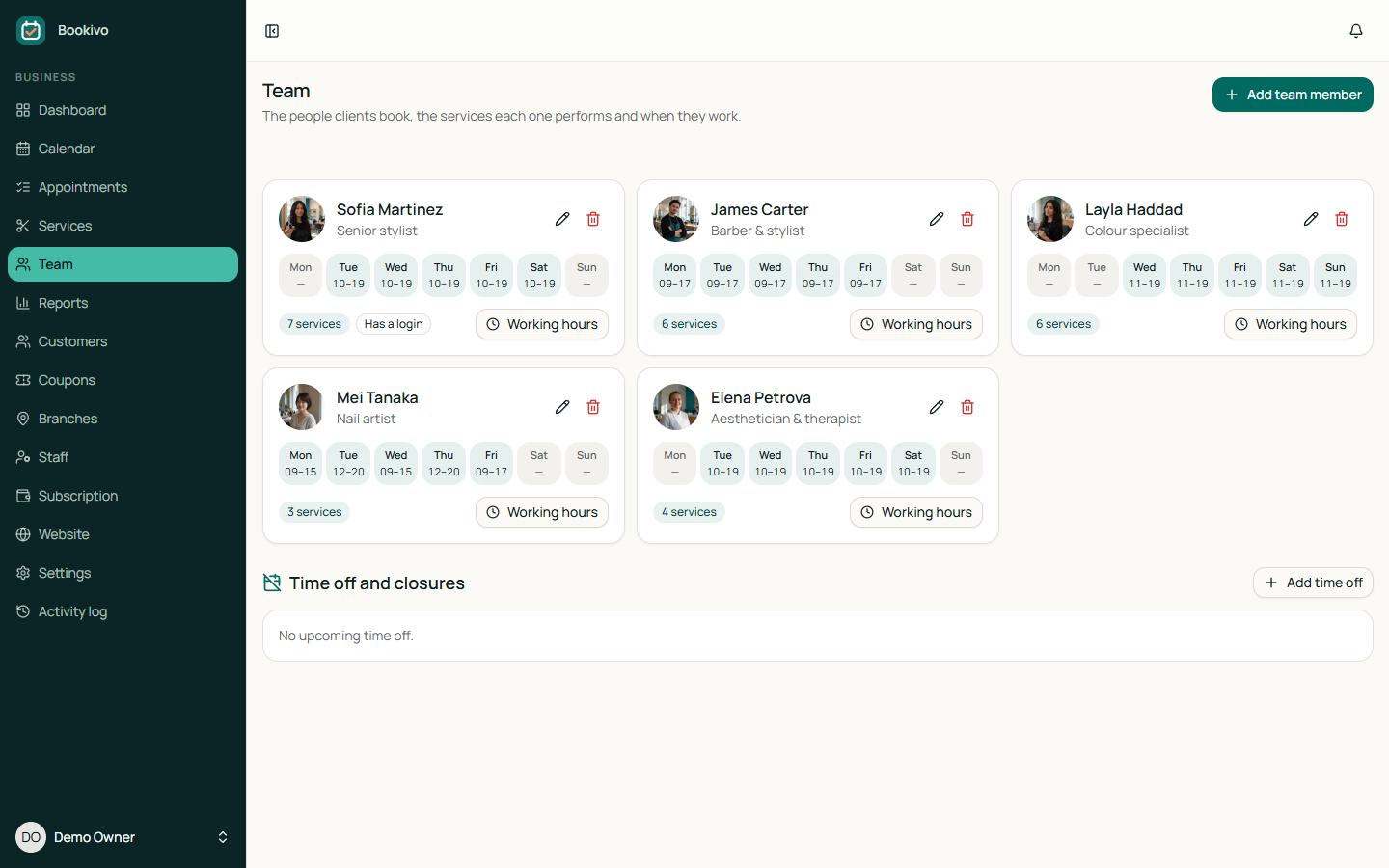
- Team members don't need a login. Link one when the person should see their own calendar.
- Working hours: up to four ranges per day; an empty day is a day off.
- Time off: for one person (leave, training) or for the whole business (holidays, closures). Nobody can book those times.
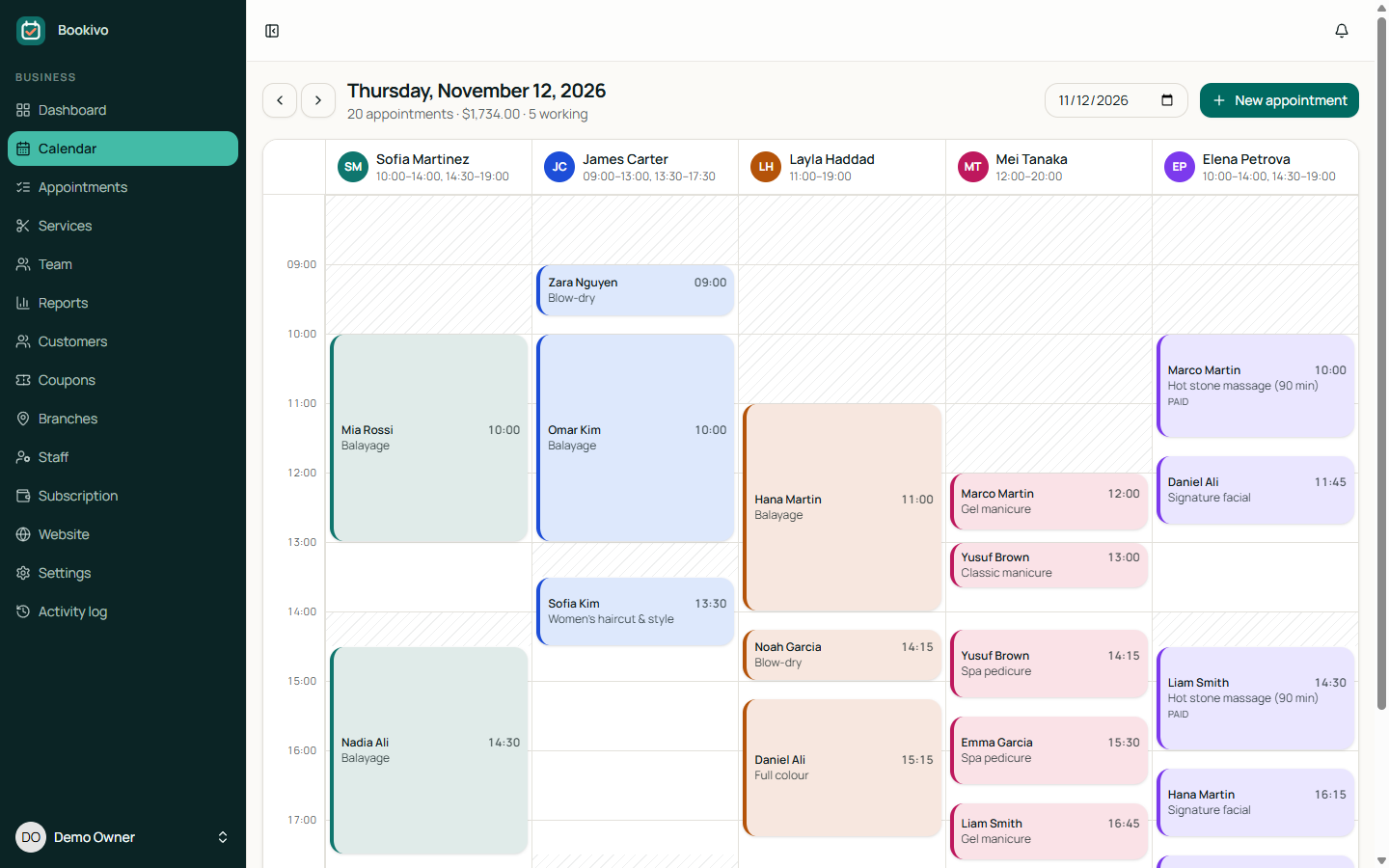
The calendar
- Day view with one column per team member, the working hours shaded and a line at the current time.
- Click a free time to book from the desk, or use New appointment. Desk bookings skip the online notice rules.
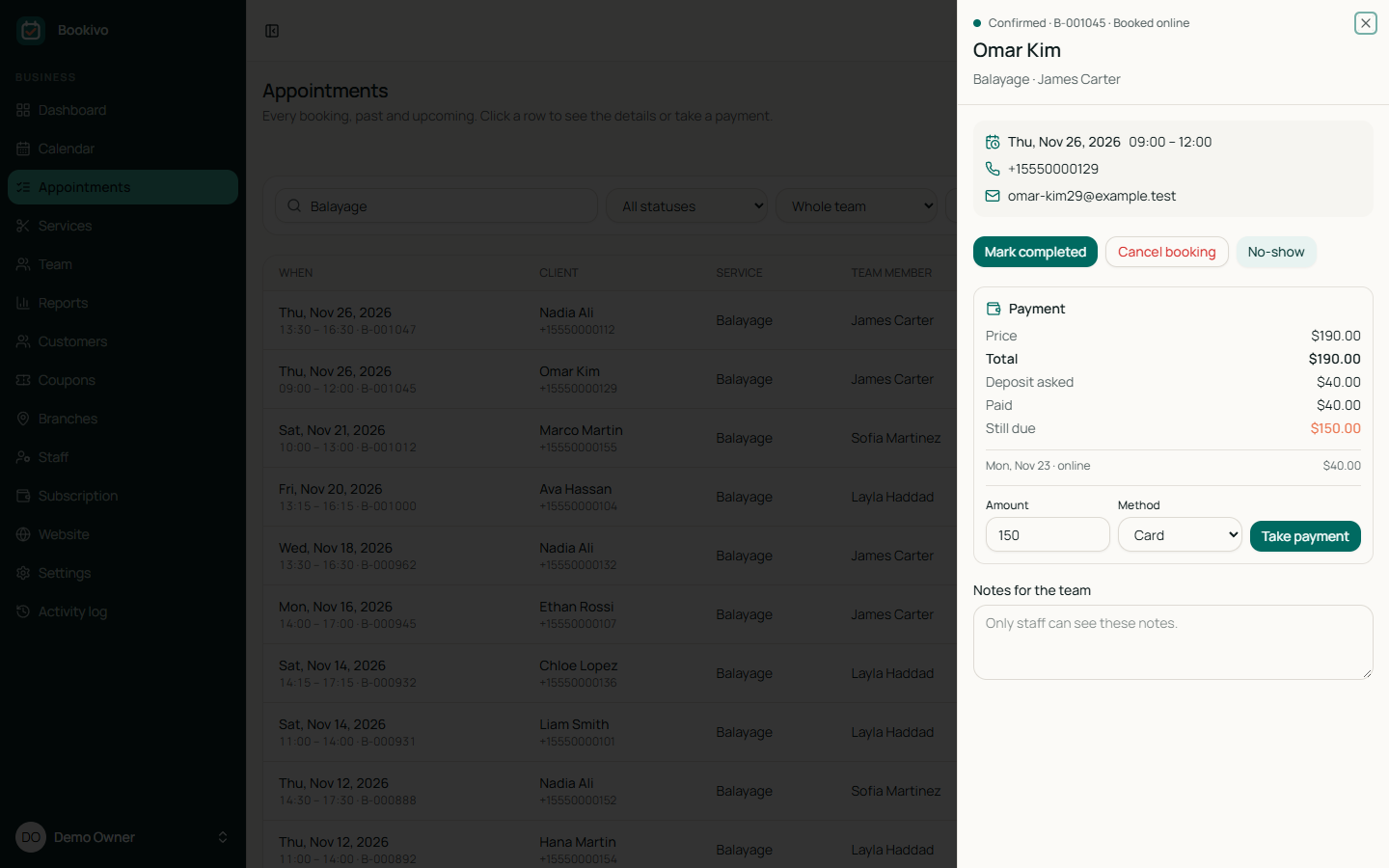
- Click an appointment to confirm it, mark it completed or no-show, cancel it, reschedule it, take a payment or add notes for the team.
The booking page
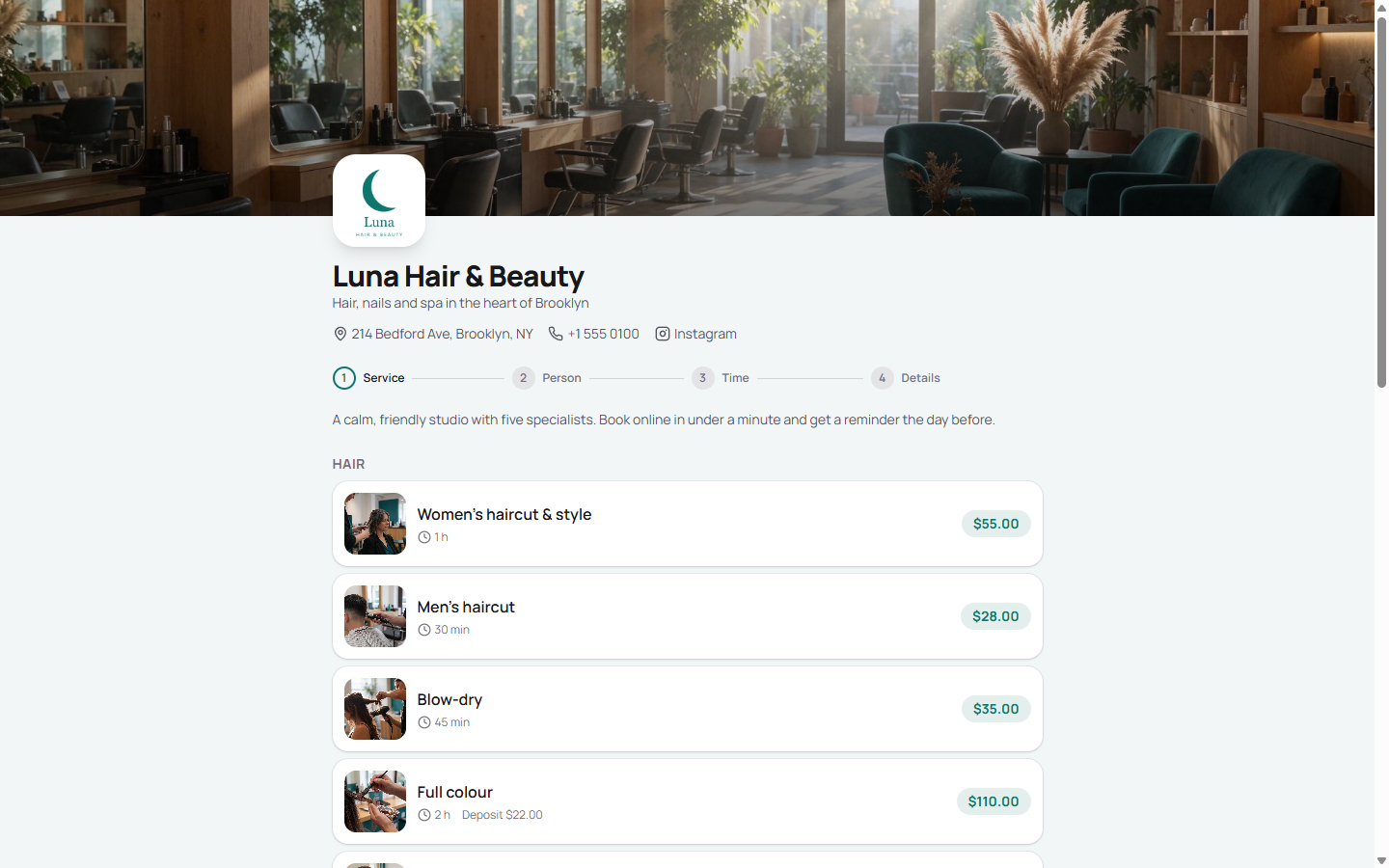
- The client picks a service, then a team member (or anyone available), then a free time.
- They enter their name, phone and e-mail, and a discount code if they have one.
- If the service asks for a deposit they pay it by card or PayPal; otherwise the booking is confirmed straight away (or waits for approval, if the business chose that).
- They get a confirmation e-mail with a link to see, pay or cancel the booking, and a reminder before the visit.
Settings → Booking rules sets the time between offered start times, the minimum notice, how far ahead clients can book, until when they can cancel online, and when the reminder goes out.
Clients, coupons and reports
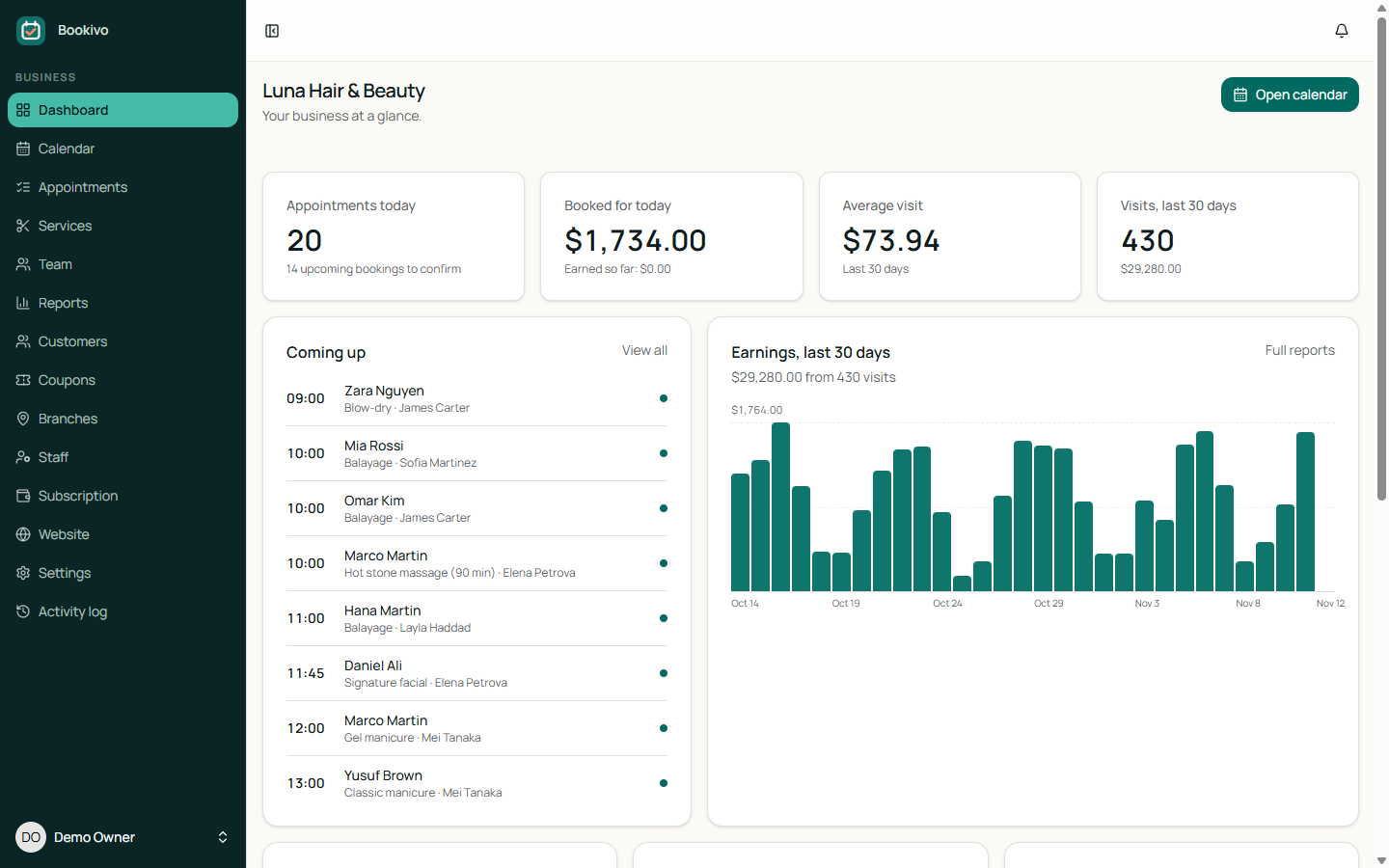
- Customers: every client is matched by phone, with their visits, money paid and notes (allergies, favourite stylist).
- Coupons: percentage or fixed discounts, with dates, usage limits and a limit per client.
- Reports: earnings by day and hour, top services, team, payments and no-shows, with CSV export.
Staff and roles
| Role | Can do |
|---|---|
| Owner | Everything, including subscription and settings. |
| Manager | Branches, staff, services, team, calendar, appointments, clients, reports, and everything under WhatsApp. |
| Receptionist | Calendar, appointments, payments at the desk, clients and the WhatsApp inbox. |
| Provider | Only their own calendar: mark their appointments completed or no-show. |
Invite staff by e-mail under Staff. Everything they change is recorded in the Activity log.
WhatsApp agent
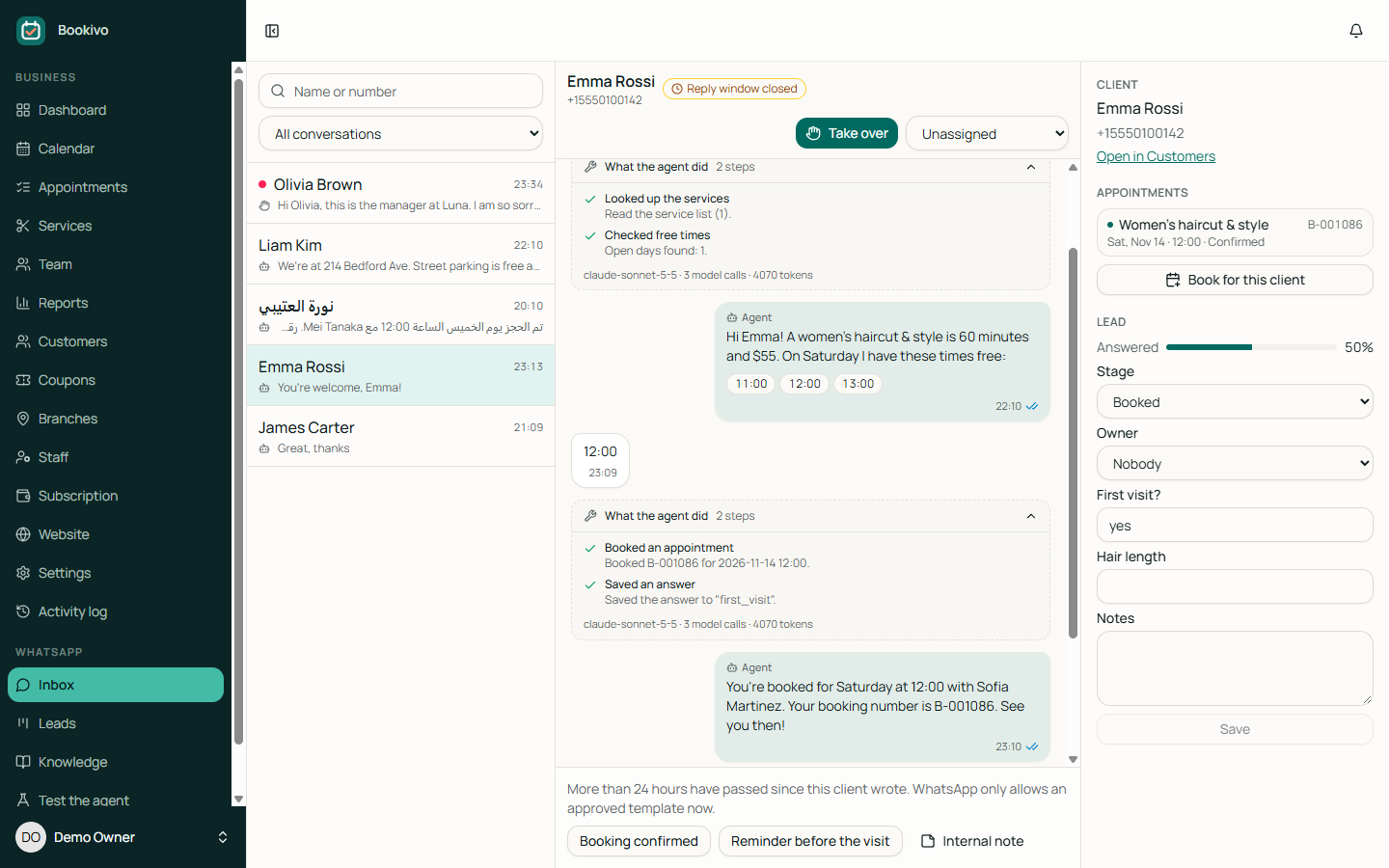
Clients write to the business's own WhatsApp number. An AI agent answers from the business's services, free times and Knowledge, and books, moves or cancels real appointments in the calendar. Staff see every conversation in a shared inbox and can take over at any moment. It is part of Bookivo (plan feature WhatsApp agent), not a paid add-on.
What each business needs
- A WhatsApp Business Platform (Cloud API) number in their own Meta business account. A number used in the WhatsApp or WhatsApp Business phone app cannot be used at the same time.
- An AI key of their own: Anthropic (Claude, default model
claude-sonnet-5-5) or any OpenAI-compatible service. The business pays its provider directly. Without a key the agent is off and nothing is answered automatically; the screens say so. - A plan that includes WhatsApp agent. The ready-made Team and Business plans do; Solo does not.
Connecting a number (the business does this once)
- In Meta for Developers create an app of type Business, add the WhatsApp product and add (and verify) the business phone number.
- Create a permanent access token: Business Settings → System users → add a system user with the app and the WhatsApp account assigned, then Generate token with
whatsapp_business_messagingandwhatsapp_business_management. Temporary 24-hour tokens stop working the next day. - Copy the Phone number ID (and optionally the WhatsApp Business Account ID) from WhatsApp → API Setup, and the App secret from App settings → Basic.
- In Bookivo: WhatsApp → WhatsApp settings → WhatsApp number → Connect a number. Paste the phone number ID, token and app secret, and choose a verify token (any phrase of 8+ characters). Save, then press Test connection: it asks Meta about the number and shows exactly what Meta answered.
- Copy the Callback URL shown under the number (it looks like
https://your-domain/whatsapp/webhook/<id>). In Meta: WhatsApp → Configuration → Webhook → Edit, paste the callback URL and the same verify token, Verify and save, then subscribe to themessagesfield. - Under Agent, choose the provider, paste the API key and fill in the business profile. Try it on Test the agent, then send a WhatsApp message to the number from your phone: it appears in WhatsApp → Inbox.
The token, app secret, verify token and AI keys are stored encrypted with your APP_KEY and are never shown again. The site must be reachable on https from the internet for Meta to deliver messages.
How replies and bookings work
- Every webhook is checked against the number's app secret (
X-Hub-Signature-256); unsigned or wrongly signed deliveries are refused. A repeated delivery is stored once. - The agent waits a few seconds (setting) so a burst of messages gets one reply. Replies are sent by the background jobs of the cron job, so on hosting without a queue worker a reply can take up to about a minute.
- It can list services, find free times, book, move and cancel the client's own appointments, search Knowledge, save answers to your questions and hand over to a person. It follows the same rules as the booking page: minimum notice, booking window, online services only, deposits (the client gets the booking link to pay) and the cancellation notice.
- A booking exists only if the booking engine really created it. If the agent's reply quotes a booking number the client does not have, the reply is not sent and the conversation goes to the team.
- The conversation is handed to the team when the agent asks for a person, when the client writes one of your hand-off words, when the AI provider fails, or when the month's AI replies are used up. Staff get a notification (bell, push and, if they chose so, e-mail).
- Take over in the inbox stops the agent for that conversation until you hand it back. Internal notes are never sent to the client.
- Under When does the agent answer? you can let it answer only while nobody on the team is working (from the working hours under Team); during opening hours new messages wait in the inbox.
The 24-hour window and templates
WhatsApp allows free replies for 24 hours after the client's last message. After that only a message template approved in Meta's WhatsApp Manager can be sent. Under Templates, type the exact template name and language for: booking confirmation, reminder (sent using the reminder time of the booking rules), cancellation and "write again". A moment with no template sends nothing. Confirmations, reminders and cancellations go only to clients who already have a WhatsApp conversation with the business.
Limits
In Admin → Plans, AI replies per month caps how many times the agent answers in a calendar month (empty = unlimited). Replies on the Test the agent screen and in the sample demo conversations are not counted. Appointments the agent books count towards Bookings per month like any other booking.
Google Calendar
Each team member can connect their own Google Calendar. The sync works both ways:
- Bookivo → Google: when an appointment is booked, moved or canceled, its event is added, changed or removed in the calendar the team member picked. The event shows the service, the client's first name and a link to the booking. Client phone and e-mail are left out unless the business ticks Add client phone and e-mail to Google events on the Team page.
- Google → Bookivo: times the team member is busy in Google (a dentist appointment, a meeting) are not offered to clients, on the booking page, at the desk and to the WhatsApp agent. Bookivo asks Google only when they are busy (free/busy), never what the events are.
It is part of Bookivo (plan feature Google Calendar sync). The ready-made Team and Business plans include it; Solo does not.
Setting up Google Cloud (platform owner, once)
All businesses on your platform share one Google OAuth client that you create. It is free.
- Open Google Cloud Console and create a project (for example "Bookivo").
- APIs & Services → Library: search for Google Calendar API and press Enable.
- Google Auth Platform → Branding (older consoles: OAuth consent screen): enter the app name your users will see, a support e-mail and your site's home page, privacy policy and terms links. Under Audience choose External.
- Data Access → Add or remove scopes: add these three, and nothing else:
https://www.googleapis.com/auth/calendar.events(add, change and remove the appointment events)https://www.googleapis.com/auth/calendar.calendarlist.readonly(list the calendars for the picker)https://www.googleapis.com/auth/calendar.freebusy(read busy times only)
- Clients → Create client, type Web application. Under Authorized redirect URIs paste the address shown in Admin → Google Calendar (it looks like
https://your-domain/google-calendar/callback). Create, then copy the Client ID and Client secret. - In Bookivo: Admin → Google Calendar, paste both and save. The secret is stored encrypted with your
APP_KEYand never shown again.
Testing mode, test users and verification
- A new Google app starts in Testing. Only the Google accounts you add under Audience → Test users can connect (up to 100), Google shows them a "Google hasn't verified this app" warning (they press Continue), and their connection expires after 7 days, after which Bookivo marks it disconnected and asks them to connect again. This is fine for trying it out.
- For real use press Publish app under Audience and submit the app for Google's verification.
calendar.eventsis a scope Google reviews: expect to show a privacy policy on your own domain, a short video of the connect flow and to explain why the app needs it. Until verification is done, Google shows the unverified-app warning and limits how many people can connect. - Google keeps at most 100 refresh tokens per Google account for one client; this only matters if the same person connects many times.
Connecting a calendar (team members)
- A team manager opens Team, clicks the Google Calendar line on a team member's card and presses Connect Google Calendar. A team member who has a login can do it themselves under Profile.
- They sign in to Google and allow access, leaving every box ticked. Bookivo writes to their main calendar and checks it for busy times; Calendars on the card lets them pick another calendar to write to and more calendars (shared family or clinic calendars) to check.
- Upcoming appointments are copied into the calendar straight away.
Disconnect removes Bookivo's access in Google (the token is revoked) and deletes it here. Events already in Google stay there. In the public demo connecting is turned off.
How it keeps working
- Busy times are read with one free/busy request for about a month ahead and kept for 5 minutes. The cron job refreshes them every 5 minutes, so clients rarely wait for Google.
- On an https site Bookivo also asks Google for push notifications: a change in the team member's calendar makes the next lookup read Google again at once. On http the 5-minute refresh is used alone.
- If Google cannot be reached, booking stays open. Bookivo uses the last busy times it knew (or none), logs a warning and shows the error on the team member's card. Events Google refused are retried by the cron job.
- If Google stops accepting the connection (access removed in the Google account, password changed, the 7-day test limit), the card shows Needs reconnecting and the business's team managers and the team member get a notification (bell, push and e-mail, which each person can turn off under Notifications).
- Tokens are stored encrypted with your
APP_KEYand are never sent to the browser.
Languages
Bookivo comes in 8 languages. English is built in; the other seven are language packs under modules/, all switched on when you install:
| Language | Code | Pack |
|---|---|---|
| English | en | built in |
| العربية (Arabic, right-to-left) | ar | modules/Arabic |
| Español (Spanish) | es | modules/Spanish |
| Français (French) | fr | modules/French |
| Português (Portuguese) | pt | modules/Portuguese |
| Deutsch (German) | de | modules/German |
| Türkçe (Turkish) | tr | modules/Turkish |
| Bahasa Indonesia (Indonesian) | id | modules/Indonesian |
Each pack covers:
- The dashboard, calendar and every screen.
- The booking page, e-mails and text messages.
- Error and validation messages.
Dates, numbers and prices follow the chosen language automatically.
- Dashboard: each person picks their language from the user menu.
- Booking page: the business ticks its languages under Settings → Region → Booking page languages (up to 6). Clients see only those, listed by their own names at the top of the page; a link can preselect one with
?lang=es. - Services: businesses can name their services in each of their booking page languages.
Don't need a language? Switch its pack off under Admin → Modules, or with php artisan module disable Turkish. It disappears from every menu.
Adding a language
The easiest way is to copy a pack. For Italian, say:
- Copy
modules/Spanishtomodules/Italian. - In
module.json, set"name": "Italian"and the"language"part:"code": "it","name": "Italian","native": "Italiano","dir": "ltr"("rtl"for right-to-left languages). - Rename
lang/es.jsontolang/it.jsonand the folderlang/estolang/it(it holds the validation, login, password and pagination messages). - Translate the values, never the keys. Keep words starting with
:, like:countor:name, and anything in{braces}or<tags>as they are. For texts with numbers (keys with a|), write one form per plural category of your language, in the order zero|one|two|few|many|other, keeping only the categories the language has (Italian: one|many|other, Arabic: all six). - Run
php artisan bookivo:lang it. It reports how much is translated and adds any missing texts, empty, tolang/it.json. Run it again after each update to pick up new texts. - Switch the module on under Admin → Modules. The language now appears in every menu.
Backups
A full backup (database and uploaded photos and logos) is made every night, and the last 7 are kept. Admin → Backups lets you:
- Make a backup now.
- Download one.
- Delete old ones.
Backups are private and are never served on the web. They work on shared hosting without mysqldump, and stay fast and light on memory with large databases.
| .env setting | Default | Meaning |
|---|---|---|
BOOKIVO_BACKUP_DAILY | true | Make the nightly backup |
BOOKIVO_BACKUP_KEEP | 7 | How many to keep |
BOOKIVO_BACKUP_FILES | true | Include uploaded files |
Updates
Admin → System → Updates:
- Download the new version from the place you bought Bookivo.
- Upload its update zip on that page and press Install.
Every update package is signed and checked before anything changes. During the update:
- The site goes into maintenance mode for about a minute.
- It backs up the database and every file the update changes.
- It installs the update, and puts everything back by itself if something fails.
You can also press Undo the last update afterwards. An update never touches your .env, storage/ (uploads, backups, logs) or the language files you added.
From the command line: php artisan bookivo:update path/to/update.zip, and php artisan bookivo:update:rollback to undo.
Troubleshooting
Start with Admin → System → Server check. It tests PHP, the cron job, background jobs, folder permissions, the uploads link, HTTPS and whether private files are exposed, and tells you how to fix each one. Some problems have a Fix button.
| What you see | Fix |
|---|---|
| A list of files, or "404" on every page | The domain doesn't point at public/, or the hidden .htaccess files weren't uploaded. See Installation, step 3. |
| "500 Server Error" | Check storage/logs/laravel.log. The usual causes are a missing PHP extension or a folder that isn't writable (storage, bootstrap/cache). |
| Creating tables stops half-way | Run the installer again with the same database; it clears the half-made tables by itself. If it still times out, ask your host to raise max_execution_time. |
| Logos and photos don't show | Server check → Public uploads link → Fix. If your host blocks symbolic links, ask them to allow them. |
| No e-mails arrive | Send a test from Admin → Email, then check the cron job (e-mails are sent in the background). Then check the spam folder and your SMTP details. |
| Invoices aren't created, trials never end | The cron job isn't running. Server check shows when it last ran. |
| No reminder e-mails | The cron job must run every minute, e-mail must work, and the business needs a reminder time set under Settings → Booking rules. Only confirmed bookings with an e-mail address get one. |
| A client sees no free times | Check that the service has team members, that they have working hours that day, and the business's minimum notice and days ahead rules. |
| Deposits stay "pending" | The webhook isn't reaching Bookivo. Check the URL and signing secret in Stripe or PayPal; their dashboards show each delivery attempt and its answer. |
APP_DEBUG=true to see an error, set it back to false right after. Debug pages show secrets.Commands
Optional. Everything can be done from the admin panel. If you have SSH, run these from the Bookivo folder:
| Command | What it does |
|---|---|
php artisan bookivo:health | The server check, in the terminal |
php artisan bookivo:backup | Make a backup now (--no-files for the database only) |
php artisan bookivo:subscriptions | Run today's billing (normally done by the cron job) |
php artisan bookivo:update file.zip | Install an update package |
php artisan bookivo:update:rollback | Undo the last update |
php artisan bookivo:lang xx | Create or check a language file |
php artisan bookivo:reminders | Send due e-mail reminders and queue due text reminders now (normally done by the cron job) |
php artisan whatsapp:reminders | Send due WhatsApp reminders now (normally done by the cron job) |
php artisan google-calendar:sync | Refresh Google busy times and retry failed events now (normally done by the cron job) |
php artisan module list | List installed modules (enable / disable a module by name) |
php artisan schedule:run | What the cron job runs every minute |
Security
- Businesses are kept apart on every page and request. One business can never see or change another's data, and every attempt is refused.
- Passwords: passwords are hashed. Accounts support two-factor authentication and passkeys, and sign-in is rate-limited.
- Secrets: payment keys and the SMTP password are stored encrypted.
- Payments: payment webhooks are signature-checked. Amounts always come from the server, never from the browser.
- Uploads are limited to images of a sensible size, renamed, and stored per business.
- Bookings can never overlap: the free time is checked again, with a lock, at the moment of saving.
Your part:
- Keep PHP up to date.
- Use HTTPS.
- Keep
APP_DEBUG=false. - Point the domain at
public/. - Keep an off-server backup.
Support
Before writing in, open Admin → System → Server check and copy anything that isn't green. Most questions are answered there or in Troubleshooting.
For help, write to support through the page where you bought Bookivo and include:
- Your order number.
- Your Bookivo version (bottom of the admin and installer pages).
- What you did and what you expected.
- The last lines of
storage/logs/laravel.log, if there is an error.
Support covers installation problems, bugs and questions about the features. It doesn't cover hosting setup, custom changes or third-party services.
Credits
Bookivo is original code. It is built on these open-source projects and assets, each under its own license (all allow use in commercial products):
| Project | Used for | License |
|---|---|---|
| Laravel, Fortify | Application framework, sign-in | MIT |
| Inertia.js | Pages without a separate API | MIT |
| React | The interface | MIT |
| Tailwind CSS | Styling | MIT |
| Radix UI | Accessible dialogs, menus and selects | MIT |
| Lucide | Icons | ISC |
| Sonner | Notifications on screen | MIT |
| spatie/laravel-permission | Roles and permissions | MIT |
| chillerlan/php-qrcode | QR codes | MIT / Apache 2.0 |
| Manrope (Mikhail Sharanda) | Interface font | SIL Open Font License 1.1 |
| IBM Plex Sans Arabic (IBM) | Arabic font | SIL Open Font License 1.1 |
The fonts are included in the download (in public/build), so no request goes to a font service. Photos shown in the live demo and screenshots are for illustration only and are not included in the download.